How to Keep Your AI Comic Characters Consistent Across Every Panel
June 2, 2026 · 7 min read
Ask anyone who has tried to make a comic with AI what frustrated them most, and you'll hear the same answer: the characters won't stay the same. Your hero has auburn hair and a scar in panel one, then turns up with darker hair and no scar in panel three. The face shifts. The build changes. Sometimes the character even swaps gender between panels. It's the single biggest thing standing between "a folder of nice AI images" and "an actual comic."
We've written before about why AI comic characters look different in every panel — the underlying causes of character drift. This post is about the other half: the concrete steps that keep your characters consistent, and a feature we just shipped that does most of the work for you automatically.
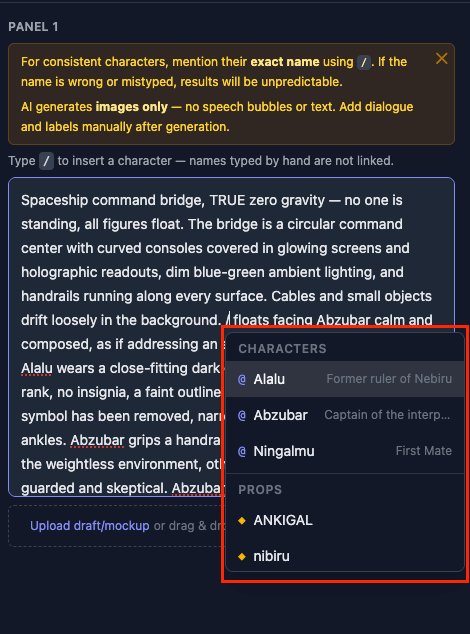
Type / in a scene and pick your character from the list — they drop in as a locked tag.
First, why characters drift at all
There are two root causes, and almost every consistency problem traces back to one of them.
1. The tool doesn't know which character you mean. If you describe a scene by typing your character's name in plain text — "Aria runs through the market" — the system has to guess that "Aria" is the character you created. A small typo, two characters with similar names, or referring to someone as "she" or "the guard" can break that link. When the link breaks, the tool doesn't attach your character's saved reference image to that panel, so the AI invents a face from scratch. That's a different-looking character.
2. You accidentally re-describe how the character looks. This is the sneaky one. When you write "Aria, her long red hair flowing, sprints down the alley," you've just re-specified her appearance inside the scene. That description fights with the character's saved profile and reference image — and whichever the AI listens to more wins. Re-describing looks in the scene is the number-one cause of a character morphing from panel to panel.
The fix for both is the same idea: let the character's saved sheet be the single source of truth for how they look, and make sure every panel is firmly linked to it. Here's how to do that in YarnSaga.
Step 1: Add characters from the list, never by typing
When you're writing a scene description, type / and a list of your characters and props pops up. Pick the one you want, and they drop into your scene as a neat, highlighted tag with their name on it. That tag is locked to the exact character.
The difference this makes is bigger than it looks. A typed name is just text the system has to interpret. A tag is a direct, unbreakable link to a specific character — so the tool knows, with zero guesswork, exactly who is in every panel and which saved look to use. No typos, no mix-ups between similarly named characters, no panels where your hero quietly loses their reference image. If you've ever generated a beautiful panel only to find the wrong face on it, this is the fix.
The same works for props — a signature sword, a spaceship, a particular jacket. Tag them from the list and they stay visually consistent too.
Step 2: Let the quick review catch your mistakes
When you hit Generate, YarnSaga now shows you a short review before it spends any credits. It tells you three things:
- Which characters it confidently linked — so you can see at a glance that everyone in the scene is connected to their reference.
- Any names it didn't recognize — if you typed a name instead of tagging it and the tool couldn't match it, you'll see a warning that this name won't be drawn as a known character. Fix it before you spend anything.
- Which appearance details it tidied up — more on this next.
One click to approve, and it generates. The review takes a couple of seconds and saves you the far more expensive cycle of generating a broken panel, noticing the wrong character, and regenerating.
Step 3: Stop describing what your character looks like
This is the habit that quietly wrecks consistency, and it's the most counterintuitive to break. Your instinct is to remind the AI what your character looks like in every scene — "his fully human face," "her bright green eyes," "the tall muscular one." It feels like you're helping. You're actually fighting your own character sheet.
So YarnSaga now does the hard part for you. When you generate, it automatically sets aside the parts of your scene text that re-describe a tagged character's permanent appearance — their face, hair, build, species features — because those are already locked by the character's profile and reference image. Your character's saved look always wins. (That saved look is now a full studio-style character model sheet — front, side, back, action poses and a hands study — which is what makes the reference so reliable.)
Crucially, it only removes the things that shouldn't change. Everything that should vary scene to scene stays exactly as you wrote it: their pose, their expression, their mood, an outfit change for this scene, an injury, the lighting, the camera angle. And before anything is set aside, the review screen shows it to you, so you can keep any detail you meant to include with a single tap.
The practical upshot: you can write scenes the natural way — focus on what's happening — and trust the system to protect what your character looks like.
A simple workflow for rock-solid characters
- Design each character once, carefully. Put all the permanent appearance detail — face, hair, build, distinguishing features — into the character's profile when you create them. This is the one and only place their look should live. (Building from a photo? See photo to comic character.)
- Tag, don't type. In every scene, add each character with / so they appear as a locked tag.
- Describe the action, not the appearance. Write what's happening — who's doing what, the mood, the setting. Leave out hair, face, and build; the character sheet has those covered.
- Use the review. Glance at the pre-generation check, fix any unrecognized names, approve, and generate.
- Reuse across stories. Building a series? Import the same character into each new story so they stay pixel-identical from episode to episode.
Follow that loop and character drift mostly disappears. The cast you designed is the cast that shows up, panel after panel. And it's only getting better: we recently upgraded the generation engine itself so characters hold their face and build even more tightly across every style.
Why this matters for your whole comic
Consistency isn't a nice-to-have — it's what makes a sequence of images read as a single story. Readers track characters by their look. The moment a face changes, the spell breaks and the reader has to stop and re-orient. Consistent characters are also what separates a serious AI comic tool from a novelty image generator, which is exactly what people are searching for when they look for the best AI comic generator with consistent characters.
Whatever you're making — a manga series, a noir mystery, an all-ages chibi adventure — the same principle holds: lock the look once, link every panel to it, and describe only what changes.
Why we built it
Character drift was the most common frustration we heard, full stop. And when we dug into real stories where it happened, the cause was almost never the AI being bad at drawing — it was the workflow letting users accidentally break the link to their character, or unintentionally fight their own character sheet with scene text. Those are workflow problems, and workflow problems have workflow fixes. Tags make the link unbreakable. The review makes mistakes visible before they cost you. And automatic cleanup means you can write naturally without sabotaging your own consistency.
Try it
It's live in every YarnSaga account right now. Open the app, open any scene, and type / to add a character. Write the action, hit Generate, glance at the review, approve. Your characters will thank you by actually looking like themselves.
New to all this? Start with the full guide to creating a graphic novel with AI. Building a cast you'll reuse a lot? Tell me what you're making — I read every note.
Create your first story — no drawing skills needed
Characters stay consistent across every panel, automatically.
Request Early Access →More Articles
Explore YarnSaga